Shirt preview before upload

Roblox Shirt Preview in 3D Before You Upload

Use this Roblox shirt preview and Roblox clothes preview to see how a flat shirt, T-Shirt, or pants texture looks on a 3D avatar before you upload.

2D to 3D previewSame design

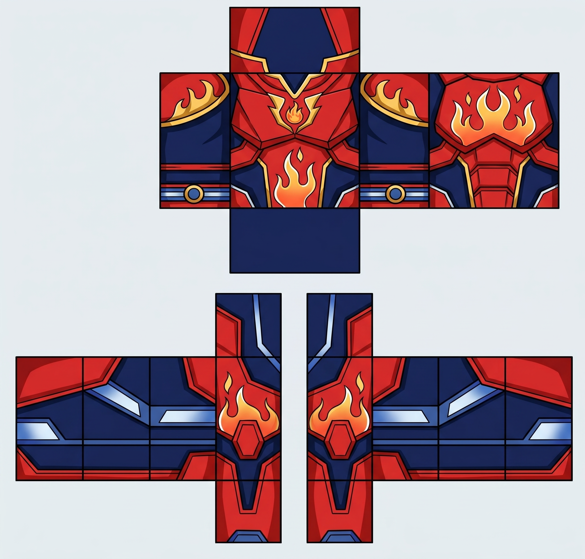
2D texture

Flat red and navy Roblox shirt texture before preview

Flat PNG file

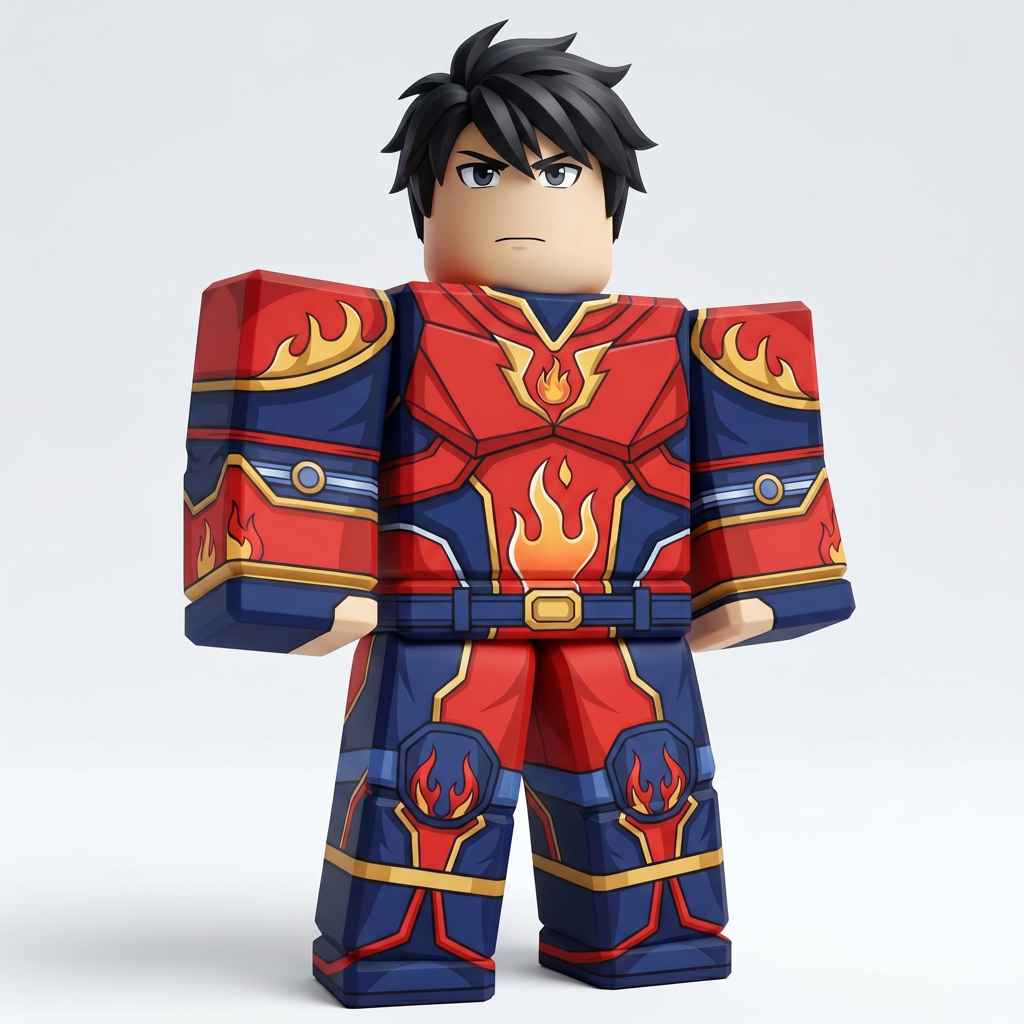
3D preview

The same red and navy outfit wrapped onto a 3D block avatar

See the finished fit

Two useful checks

Preview quickly, then confirm in Roblox Studio

Each method answers a different question. Use both before you upload the finished item.

Quick check

Browser 3D preview

A quick check while you edit

Load your design, rotate the block avatar, and check the front, back, sides, arms, or legs. This preview is a visual aid and does not replace Roblox Studio.

  • The main artwork sits on the intended body area.
  • Text, logos, and one-sided details face the correct direction.
  • No large section of the template was left blank by mistake.
  • Colors and patterns continue across nearby edges.

Use it to catch obvious problems early. Appearance can still differ inside Roblox.

Final check

Roblox Studio test

Your final check before upload

Add the correct clothing object to a Block Avatar rig and apply your uploaded image to its matching property. Roblox Studio testing does not require a fee.

  • The design wraps correctly around the full avatar.
  • Sleeves, torso panels, or pant legs meet cleanly.
  • Small details remain readable from normal viewing distance.
  • The clothing looks right from the front, back, and both sides.

Follow the official Studio test before paying to upload the finished item.

Test your clothing in Studio for free

Put the image on a Block Avatar rig and inspect every side before you pay an upload fee.

Free final testTesting Classic Clothing in Roblox Studio does not require an upload payment.
  1. 101

    Open Roblox Studio

    Open a place in Studio. From the Avatar tab, select Character, then choose a Block Avatar rig.

  2. 202

    Add the matching clothing object

    In Explorer, hover over Rig, select the plus button, and add ShirtGraphic for a T-Shirt, Shirt for a Classic Shirt, or Pants for Classic Pants.

  3. 303

    Select the clothing object

    Choose the new ShirtGraphic, Shirt, or Pants object under Rig so its settings appear in Properties.

  4. 404

    Set the image property

    Use Graphic for a T-Shirt, ShirtTemplate for a Shirt, or PantsTemplate for Pants. Select the image you uploaded to Roblox.

  5. 505

    Inspect every side

    Rotate the rig and inspect the front, back, left, and right sides. Pay close attention to seams, joints, text, and transparent areas.

  6. 606

    Fix and test again

    Return to your image editor, correct any visible problem, and repeat the Studio test until the clothing looks ready.

Common preview mistakes

Checking only the front

What you see: The design looks finished from one angle but has blank or mismatched areas elsewhere.

Rotate the avatar through every side and inspect the tops and bottoms of visible body parts.

Reversed text or logos

What you see: A sleeve badge, word, or symbol faces backward after the image wraps around the avatar.

Check the template labels, flip the affected artwork in your image editor, and preview it again.

Broken seams

What you see: Stripes, jacket edges, or solid colors stop suddenly between two body faces.

Extend matching colors and lines to the touching edges of both template sections.

Using the wrong clothing type

What you see: The image appears in the wrong place or does not wrap around the expected body parts.

Use ShirtGraphic and Graphic for a T-Shirt, Shirt and ShirtTemplate for a Shirt, or Pants and PantsTemplate for Pants.

Treating a browser preview as the final result

What you see: Small differences become visible only after the clothing is applied inside Roblox Studio.

Complete the free Studio test before uploading the item for release.

Quick answers

Roblox clothes preview FAQ

Can I preview a Roblox shirt before uploading?+

Yes. Use the browser 3D preview as a Roblox shirt preview for a quick visual check, then test the finished image in Roblox Studio before you submit it.

Is testing Classic Clothing in Roblox Studio free?+

Yes. Roblox states that testing Classic Clothing in Studio does not require a fee.

Which object should I add in Roblox Studio?+

Add ShirtGraphic for a Classic T-Shirt, Shirt for a Classic Shirt, or Pants for Classic Pants.

Which property should contain my image?+

Use Graphic for a T-Shirt, ShirtTemplate for a Shirt, and PantsTemplate for Pants.

Why does my design look backward?+

Classic Clothing templates wrap flat artwork around several body faces. Check the affected face label, flip the artwork in your editor, and test it again.

Does the browser preview show exactly how Roblox will render my item?+

It provides a fast visual check on a block avatar. Use Roblox Studio for the final test because appearance can differ inside Roblox.